Compliance
Part of Native video and interactive formats
Checking accessibility in an interactive sponsored feature
Check an interactive sponsored feature across keyboard use, screen readers, result states, reflow, media alternatives and sponsorship cues.
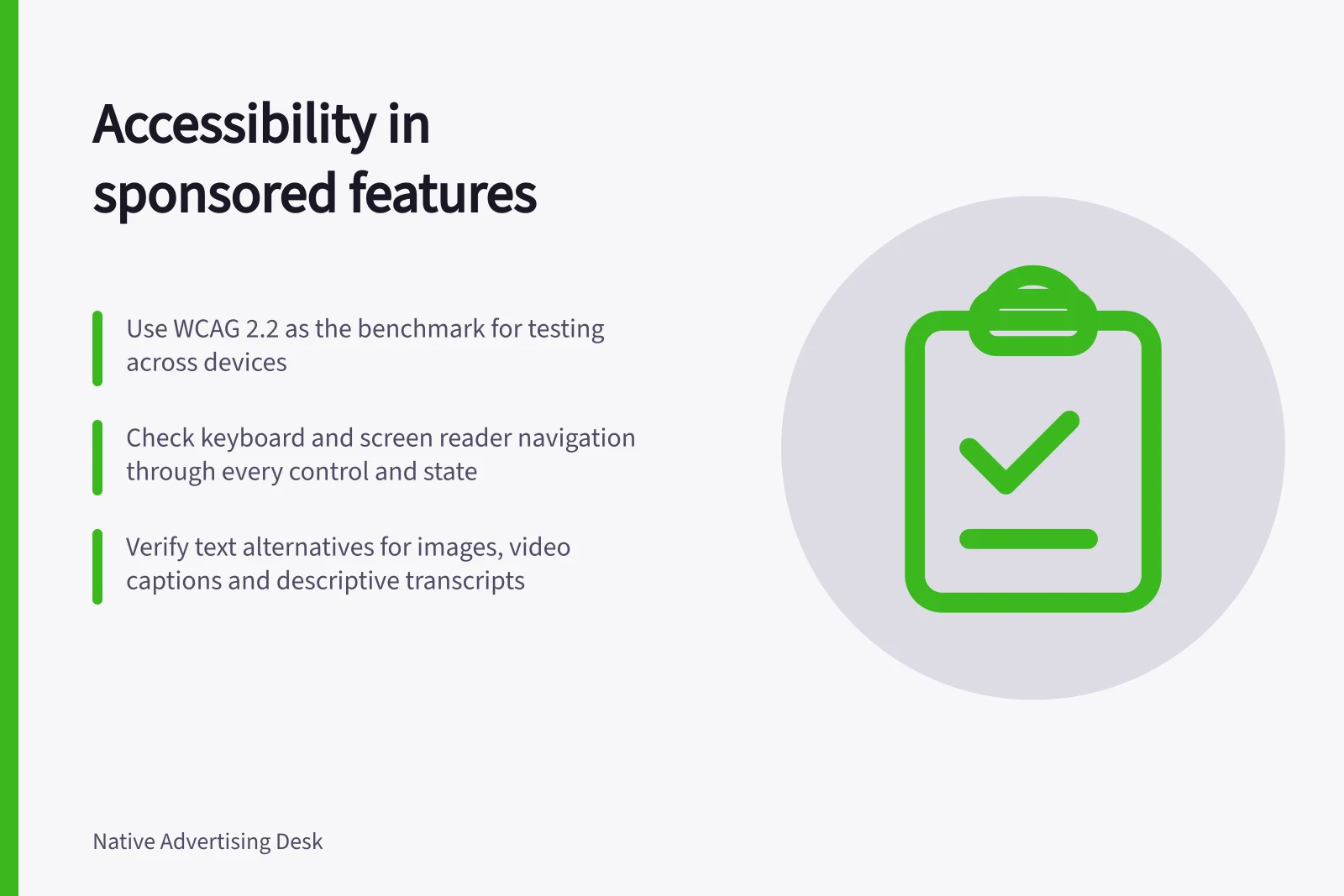
Check the implemented feature through every meaningful path: enter from the promotion or directly, operate controls, handle errors and reach each result. An automated scan or design file alone cannot show the journey works for readers using different input methods or assistive technology. Use WCAG 2.2 as the benchmark for these checks: its success criteria are testable, technology-neutral statements and apply across desktops, laptops, kiosks and mobile devices.
List the paths and states
Record entry points, choices, results, errors and exits. Include any form, video or animation, and note what information a reader needs and what action they must be able to take on each path. Include a direct visit to the destination, where a person may never see the promotional card.
Check the sponsorship cue on the promotion and on the destination as each appears on its own. Look for a cue that is hidden at a narrow width or inside a closed panel, where it may be missed.
The AANA Code of Ethics applies to advertising and marketing communications under an advertiser’s reasonable control, whether or not payment or other valuable consideration is involved, and includes communications where potential customers are physically present in Australia. Its stated objectives include legality, honesty, truthfulness, respect for human dignity, avoiding harm, and fairness and responsibility to competitors.
Accessibility Compliance Statistics (Australia)
- AANA Code of Ethics CoverageApplies to all advertising under advertiser control in Australia, regardless of payment.
- WCAG 2.2 BenchmarkRequired standard for digital accessibility compliance across government and private sector in Australia.
Use a keyboard and screen reader
Move through every control without a mouse. Check order, visible focus, operation and ability to leave a component. Open and close panels, change choices, submit forms and return to edit an answer.
For an accordion, check that Enter or Space opens a collapsed panel and, where supported, closes an expanded one. Check that Tab and Shift + Tab move through the page sequence, and that the header exposes its expanded state and points to the associated panel.
Check that every form control has an associated label identifying its purpose. Where a label element is used, verify that its for value matches the control’s id; also check that instructions, validation and feedback help readers complete the form.
Repeat the paths with a screen reader. Listen for control names, states, instructions, errors and results, and check that a newly displayed result can be found and understood without relying only on a visual change. Check keyboard use, focus, labels and status messages separately; passing one check does not establish conformance for the page.
Check the copy in every result
Test with the real wording, including long results and material qualifications. Headings should describe their sections when navigated out of sequence. If a result depends on an answer, make that relationship clear. Explain an unavailable choice and provide a way forward where appropriate.
For non-text content, check WCAG 2.2 Success Criterion 1.1.1: relevant images need text alternatives, while purely decorative items should be ignored by assistive technology. Check that a non-text control has a name describing its purpose; the WCAG Quick Reference points to 4.1.2 for further control requirements.
Review narrow widths and enlarged text for clipped copy, unreachable controls, reading order and two-dimensional scrolling. Check colour contrast for body text, sponsorship cues, result states and visible focus indicators, and ensure information is not conveyed by colour alone.
Assess automatically starting animation against the WCAG 2.2 requirements that apply to its actual behaviour; do not assume every animation needs the same control. Record which behaviour you tested and what happened.
Check media and alternatives
For video, check captions for relevant speech and non-speech audio, access to important visual information, and keyboard operation of the player. Check whether audio description or video description conveys visual information needed to understand the content, such as charts, graphs and text shown on screen.
A transcript can help readers revisit content, but it does not automatically satisfy every requirement for synchronised video. Check whether a descriptive transcript includes text descriptions of visual information; descriptive transcripts are required to provide video content to people who are both Deaf and blind.
For non-video imagery and icons, check that text alternatives convey relevant information or that decorative items are ignored by assistive technology. Include sponsor logos and illustrative images.
If an interaction cannot load or be operated, check whether readers can still reach the essential explanation through a usable route. That route also exposes a feature whose clicks never lead to a substantive answer.
Record and recheck findings
For each issue, record the page version, path, device or browser, input method, expected behaviour, observed behaviour and severity. Recheck the changed path and neighbouring states after a fix.